- About email alerts
- Configuring email alerts
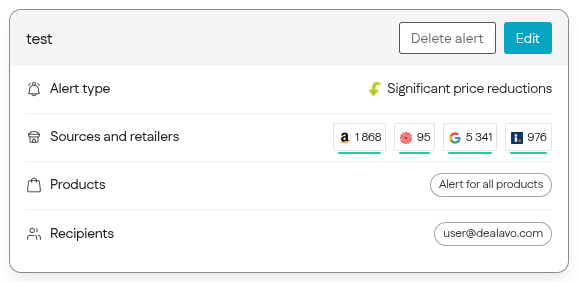
- Editing/deleting an email alert
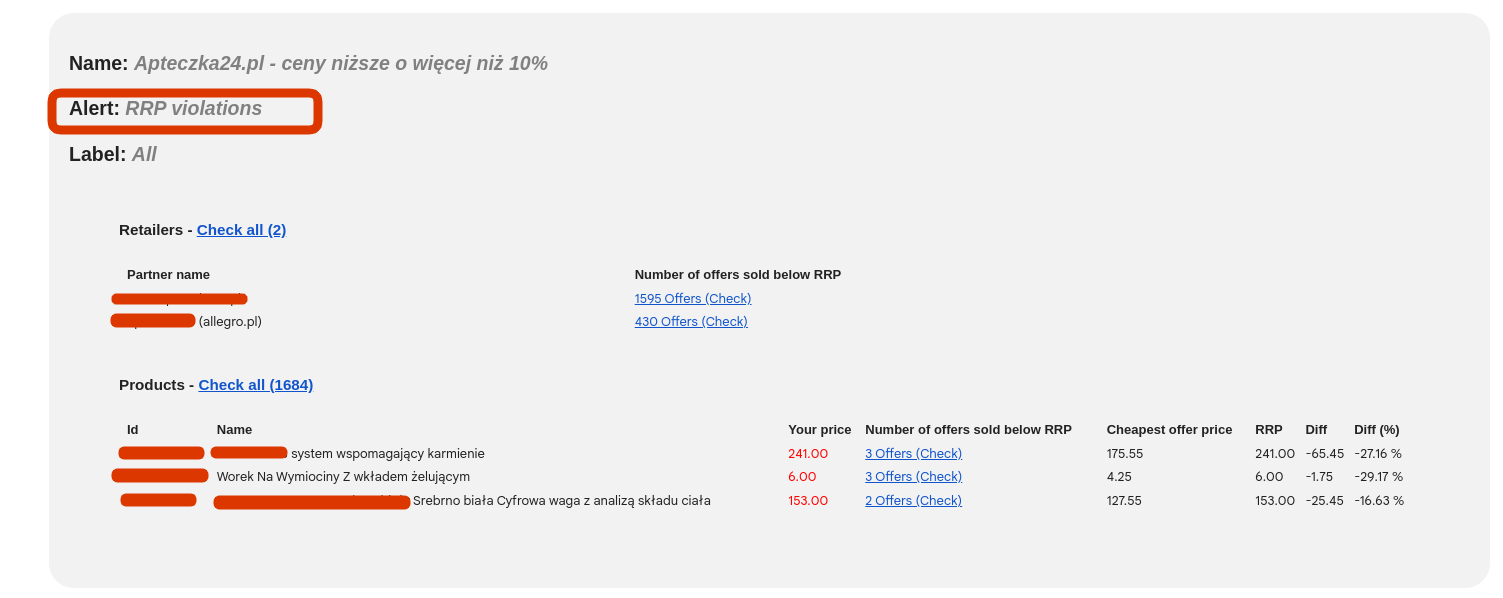
- What does a sample alert look like?
About email alerts
Email alerts are notifications about events you want to monitor with special attention. You can choose any group of products and set up an alert you're interested in, and we'll send you a relevant email after every price update.
An email alert lets you:
- save time searching for the information you're interested in within the app – our clients browse email alerts with their morning coffee ;)
- quickly check price changes for selected product groups
Configuring email alerts
You can set up alerts under My Account > Email alerts, by clicking the ⚙️ icon in the app header.
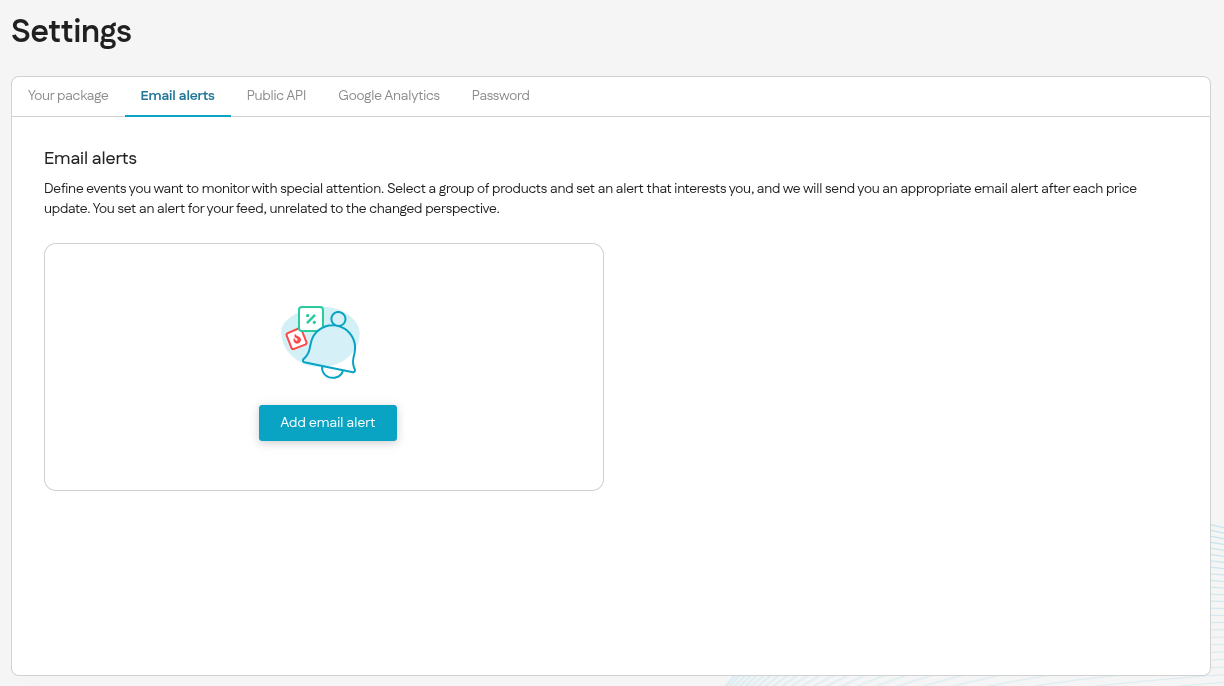
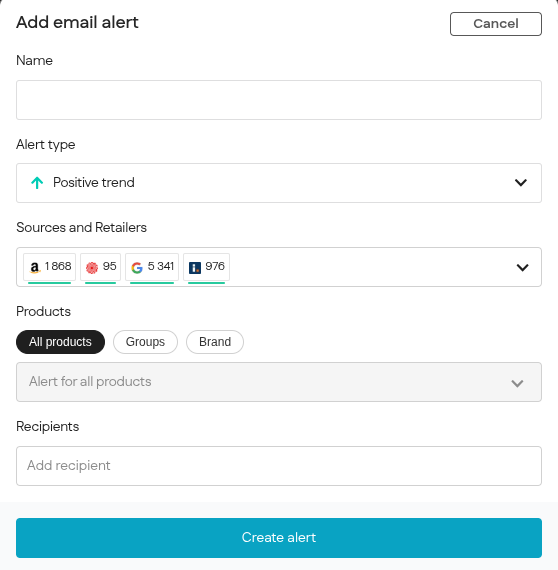
1. Enter a unique alert name.
2. Choose the desired alert type:
3. Choose one or both methods for detecting the change:
- % Percent – tracks percentage difference in price before and after the update.
- $ Amount – tracks absolute value difference in price before and after the update.
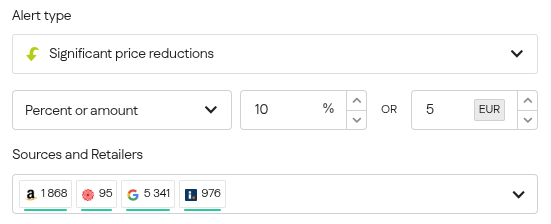
Enter the percentage or numeric value defining the price difference.
Note: values must be positive.
Example 1: If you want to receive an alert when a product is sold at least 11% cheaper than the list price, enter "11" in the % Percentage field.
Example 2: If you want to receive an alert when a product is at least 11% or 69 currency units cheaper, enter the corresponding values in the % Percentage and $ Amount fields.
If you select both options, you need to specify a condition:
"AND" – the alert will be sent when both conditions are met.
"OR" – the alert will be sent when at least one of the conditions is met.
4. Choose the offer sources you want to monitor. You can include or exclude more than one source.
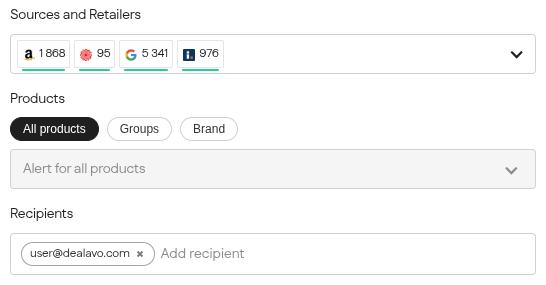
5. Choose the retailers for which you want to receive alerts. You can select multiple.
6. Choose the products the alert will apply to. You can select all products or a specific group of them.
7. Enter the email addresses of the people who should receive the alert. This can be your address or the address of someone else in your organization.
8. Click the "Create alert" button to save it.
Editing/deleting an email alert
What does a sample alert look like?
Was this article helpful?
That’s Great!
Thank you for your feedback
Sorry! We couldn't be helpful
Thank you for your feedback
Feedback sent
We appreciate your effort and will try to fix the article